




What does the SimLab STEP Importer for Blender do?
The SimLab STEP Importer is a Blender add-on that imports STEP CAD files (.step and .stp) directly into Blender 5.1 and older on Windows and macOS. It transfers geometry and materials, including colors and surface properties, and lets you adjust scale, rotation and up vector on import. A single-user subscription costs $72 per year and installs on two machines. The free trial lasts 14 days or 30 uses, with no credit card required.
- Formats: STEP (.step, .stp)
- Supported: Blender 5.1 and older
- OS: Windows, macOS
- Transfers: geometry, materials
- Price: $72/year (single user, 2 machines)
- Free trial: 14 days or 30 uses, no credit card

Cross-Platform
Blender 5.1 - Windows & macOS

Transformations
Corrections(Up Vector,Rotate by, Scaling Multiplier)

Ease Of Use
Quality outputs in minimal steps
Materials Support
Full material transfer from CAD to Blender


Pricing
Blender STEP Importer
Blender
STEP Importer

How to Install and Use the Plugin
- Open Blender.
-
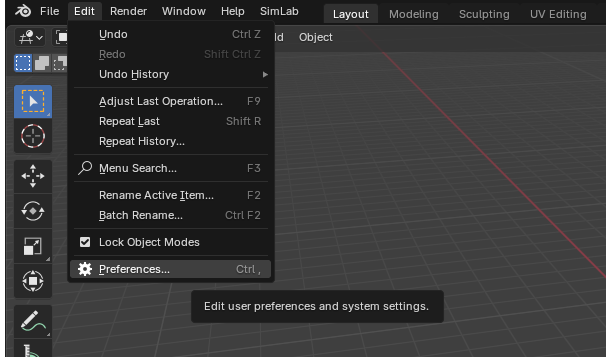
Navigate to Edit > Preferences.
-
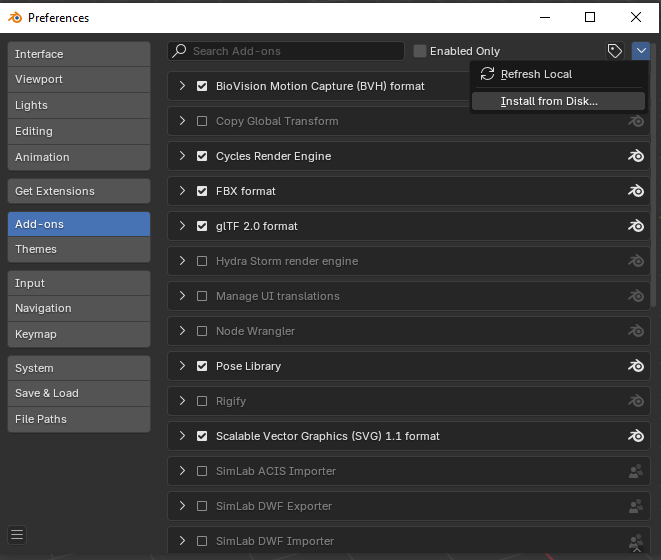
Click on Add-ons, then select the dropdown arrow at the top right and click
Install from Disk.
-
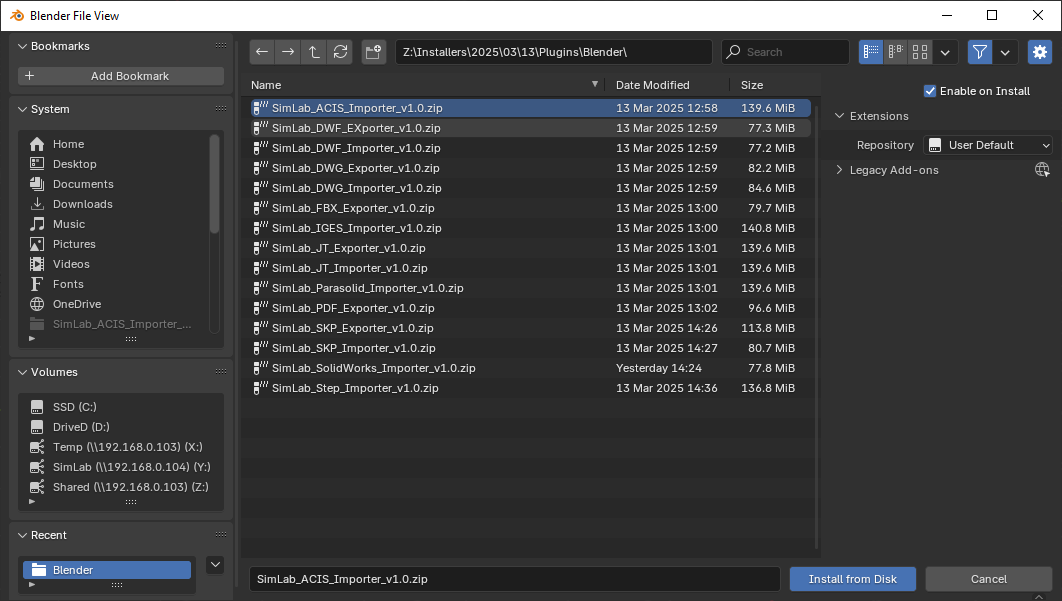
Locate the path where the ZIP file was downloaded , then click Install from Disk.
-
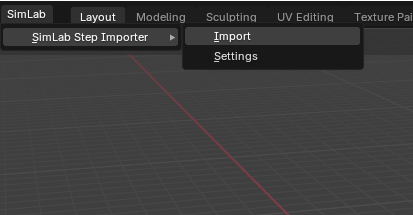
Go to the SimLab tab and locate the Step Importer section, as shown in the image.
- To obtain a trial license, open Settings and follow the steps provided here.

STEP to Blender Import - Frequently Asked Questions
Everything you need to know about importing STEP files into Blender with SimLab's professional plugin
- Is an STP file the same as a STEP file in Blender?
Yes. .stp and .step are two file extensions for the same STEP (ISO 10303) CAD format. The SimLab STEP Importer accepts both, so you can bring either into Blender 5.1 or older with geometry and materials.
- Do I need CAD software to get a STEP model into Blender?
No. With the SimLab STEP Importer installed, you import .step/.stp files directly inside Blender on Windows or macOS, with no separate CAD application and no intermediate conversion to a mesh format such as OBJ or STL.
- Why import STEP directly instead of converting it to STL or OBJ first?
STL stores only mesh geometry, with no materials or colors, so CAD appearance data is lost in that round-trip. Importing STEP directly with the SimLab plugin brings geometry and materials into Blender in one step, with scale and up-vector controls.
- What information is imported from the STEP model to Blender?
The plugin transfers geometries, materials.
- What versions of Blender are supported?
The plugin supports Blender 5.1 and older, it works on Windows and macOS.
- What control do I have over the imported STEP?
Defaults should work automatically for most of the models, the setting of the plugin still allows you to control the scale of the model, and the up vector to be used.
- How do I import STEP files into Blender?
To import STEP files into Blender, install the SimLab STEP importer plugin, go to File > Import > STEP (.step/.stp), select your CAD file, and the plugin will convert the geometry and materials directly into your Blender scene with full material preservation.
- Can Blender open STEP files natively?
No, Blender cannot open STEP files natively. STEP is a CAD format that requires specialized conversion. The SimLab STEP importer plugin bridges this gap, enabling direct import of STEP/STP files with geometry and material data intact.
- What file formats can I convert to Blender besides STEP?
Besides STEP (.step/.stp) files, SimLab offers import plugins for various CAD formats including IGES, Parasolid, ACIS, JT, and 3DXML. All plugins maintain material information and work with the same cross-platform compatibility.
- Is the STEP to Blender plugin free?
The SimLab STEP importer offers a free 14-day trial with 30 uses to test all features. After the trial, a yearly subscription of $72 provides unlimited use on two machines per user with ongoing updates and support.
- Does the plugin preserve materials when importing STEP files?
Yes, the SimLab STEP importer uniquely preserves both geometry and material information during import. Unlike basic converters that only transfer geometry, this plugin maintains material assignments, colors, and surface properties from your original CAD models.
- Which Blender versions support STEP file import?
The SimLab STEP importer supports Blender 5.1 and all previous versions, working on both Windows and macOS. The plugin is regularly updated to maintain compatibility with the latest Blender releases and CAD standards.
- How large STEP files can I import into Blender?
The plugin can handle both small and large STEP files efficiently. File size limits depend on your system's memory, but the plugin includes optimization settings to control mesh density and processing for large industrial CAD models while maintaining quality.
Trial licenses:
- How to request a trial license? and for how long it would be valid?
Check this page for step by step instructions on how to request and activate a trial license.
Trial licenses are valid for 14 days or 30 trials whichever comes first.
Professional licenses:
- Requesting and activating a professional license?
Check this page for step by step, instructions on how to activate a professional license upon receiving a software key that can be used for activating the Plugin.