



How do I export a Blender model to DWG for AutoCAD?
SimLab DWG Exporter for Blender saves Blender models as DWG files for AutoCAD. It supports Blender 5.1 and older on Windows and macOS and exports geometry, materials and textures, with scale, up-axis and rotation controls. Install the ZIP via Edit > Preferences > Add-ons > Install from Disk, then use the DWG Exporter section in the SimLab tab. A single-user subscription costs $72/year (two machines). Free trial: 14 days or 30 uses, no credit card.
- Supports: Blender 5.1 and older
- OS: Windows and macOS
- Exports: geometry, materials, textures to DWG
- Price: $72/year subscription, single user, two machines
- Trial: 14 days or 30 uses, no credit card
- Controls: scale, up vector, rotate by

Supports
Blender 5.1 and older
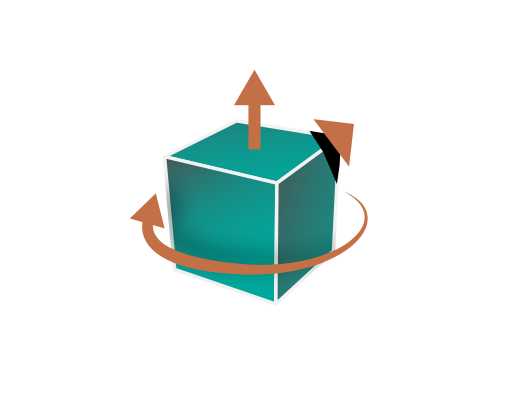
Transformations
Corrections(Up Vector,Rotate by, Scaling Multiplier)

Ease Of Use
Quality outputs in minimal steps
Materials Support
Export your models with their materials to AutoCAD
Professional Blender to AutoCAD Workflow
Why Export DWG from Blender?
Bridge the gap between creative 3D modeling in Blender 5.1 and professional CAD workflows in AutoCAD. Essential for architects, engineers, and designers who need to share models with CAD-based teams or integrate into existing AutoCAD projects.
DWG vs Free DXF Alternatives
Unlike free DXF exporters, SimLab's DWG exporter provides native AutoCAD compatibility with full 3D geometry, material properties, and layer organization. Professional-grade export quality with commercial support and regular updates.
Professional Use Cases
• Architectural visualization to construction documents
• Product design to manufacturing specifications
• Site planning and landscape architecture
• Mechanical design collaboration
• Engineering model documentation
AutoCAD Integration Benefits
Seamless integration with AutoCAD 2024 and older. Preserves layer structure, material assignments, and geometric accuracy. Enables collaborative workflows between Blender artists and AutoCAD engineers.


Pricing
Blender DWG Exporter
Blender
DWG Exporter

How to Install and Use the Plugin
- Open Blender.
-
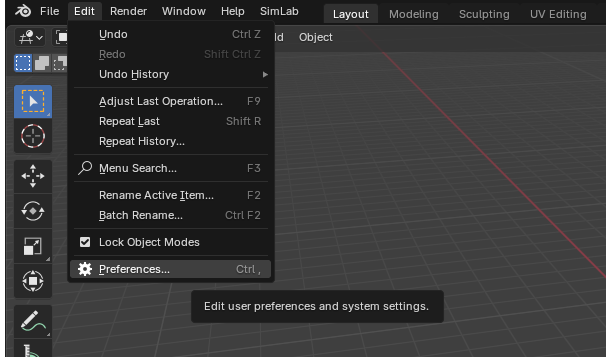
Navigate to Edit > Preferences.
-
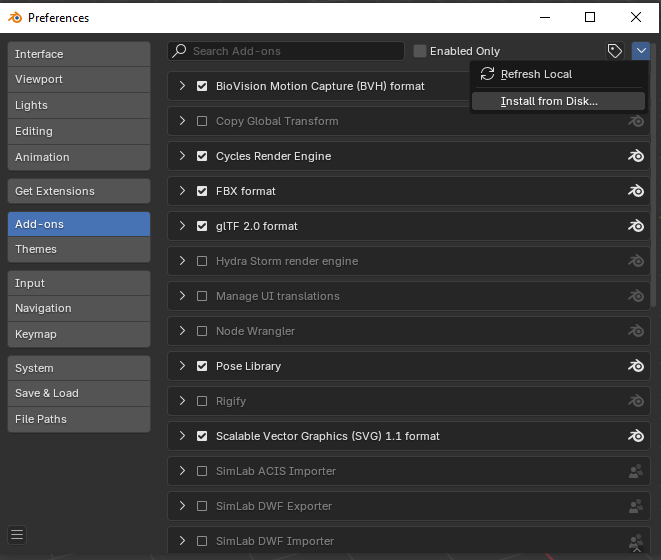
Click on Add-ons, then select the dropdown arrow at the top right and click
Install from Disk.
-
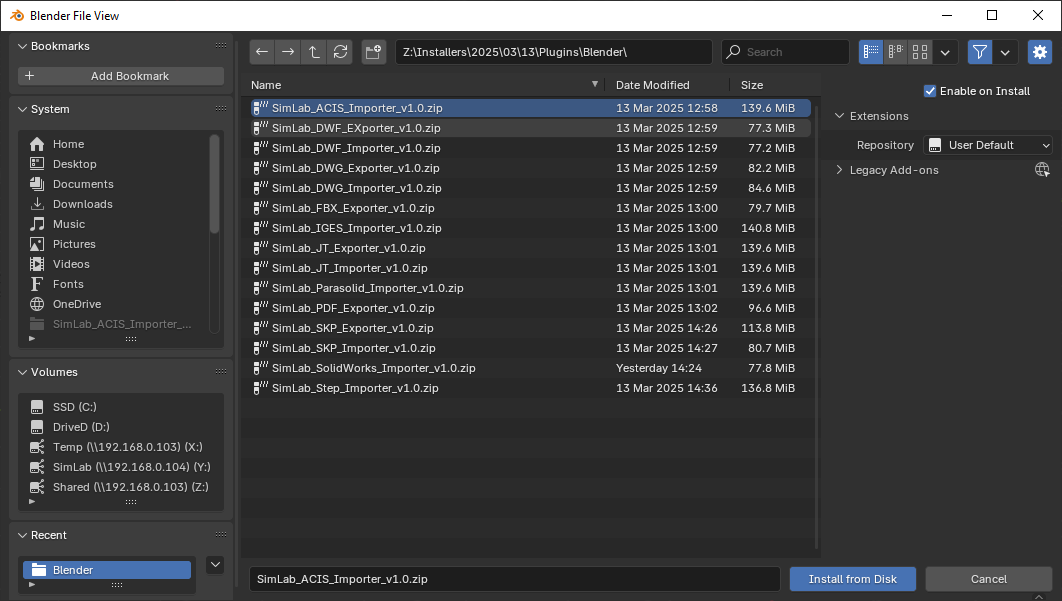
Locate the path where the ZIP file was downloaded , then click Install from Disk.
-
Go to the SimLab tab and locate the DWG Exporter section, as shown in the image.
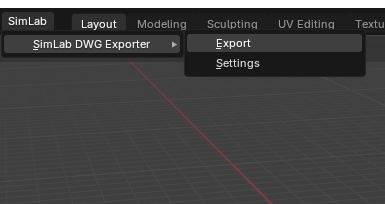
- To obtain a trial license, open Settings and follow the steps provided here.

FAQ
- Can Blender export DWG files without a plugin?
Blender does not include a built-in DWG exporter; its CAD-oriented export options centre on DXF through add-ons. SimLab's DWG Exporter writes DWG directly from Blender 5.1 and older, carrying geometry, materials and textures into the file.
- How do I get a Blender model into AutoCAD?
Install SimLab DWG Exporter in Blender, open the SimLab tab, and export the scene as a DWG file, adjusting scale and up axis if needed. Then open the DWG in AutoCAD. The page states compatibility with AutoCAD 2024 and older.
- Is the Blender DWG Exporter a subscription?
Yes. It is sold as a single-user subscription at $72 per year, billed annually, and can be installed on two machines by the same user. You can try it first with a free trial of 14 days or 30 uses.
- What information is exported from Blender to DWG format?
The plugin exports geometries, materials, and textures from Blender models to AutoCAD-compatible DWG format with full 3D data preservation.
- What versions of Blender are supported?
The plugin supports Blender 5.1, 4.0, 3.6 LTS and all earlier versions. Compatible with Windows and macOS systems for professional CAD workflows.
- What control do I have over the exported DWG file?
Full control over export settings including model scale, up-axis orientation, unit conversion, and transformation options. Smart defaults work automatically for most models, but you can fine-tune settings for specific AutoCAD workflows.
Trial licenses:
- How to request a trial license? and for how long it would be valid?
Check this page for step by step instructions on how to request and activate a trial license.
Trial licenses are valid for 14 days or 30 trials whichever comes first.
Professional licenses:
- Requesting and activating a professional license?
Check this page for step by step, instructions on how to activate a professional license upon receiving a software key that can be used for activating the Plugin.